Azure Websites are a fantastic method of hosting your own web site. At Arana Software, we use them often, particularly as test environments for our client projects. We can quickly spin up a free site that is constantly up-to-date with the latest code using continuous deployment from the project’s Git repository. Clients are able to see progress on our development efforts without us having to worry about synchronizing codebases or managing infrastructure. Since Windows Azure is a Microsoft offering, it is a natural for handling .NET projects, but JavaScript-based nodejs is also a natural fit and a first-class citizen on the Azure ecosystem. Incorporating Grunt Grunt is a JavaScript-based task runner for your development projects to help you with those repetitive, menial, and mundane tasks that are necessary for production readiness. This could be running unit tests, compiling code, image processing, bundling and minification, and more. For our production deployments, we commonly use Grunt to compile LESS into CSS, CoffeeScript into JavaScript, and Jade into HTML, taking the code we write and preparing it for browser consumption. We also use Grunt to optimize these various files for speed through bundling and minification. The output of this work is done at deployment rather than development, with only the source code committed into Git and never its optimized output. Git Deploy and Kudu Continuous deployment will automatically update your site with the latest source code whenever modifications are made to the source repository. This will also work with Mercurial. There is plenty of existing documentation on setting up Git Deploy in Azure, so consider that a prerequisite for this article. However, Git Deploy, alone, will only take the files as they are in source, and directly deploy them to the site. If you need to run additional tasks, such as compiling your .NET source or running Grunt, that is where Kudu comes in. Kudu is the engine that drives Git deployments in Windows Azure. Untouched, it will simply synchronize files from Git to your /wwwroot, but it can be easily reconfigured to execute a deployment command, such as a Windows Command file, a Shell Script, or a nodejs script. This is enabled through a standardized file named ".deployment". For Grunt deployment, we are going to execute a Shell Script that will perform npm, Bower, and Grunt commands in an effort to make our code production-ready. For other options on .deployment, check out the Kudu project wiki. Kudu is also available locally for testing, and to help build out your deployment scripts. The engine is available as a part of the cross-platform Windows Azure Command Line Tools, available through npm. Installing the Azure CLI npm install azure-cli –-global
We can also use the Azure CLI to generate default Kudu scripts for our nodejs project. Though we will need to make a few modifications to make the scripts work with Grunt, it will give us a good start.
azure site deploymentscript –-node
This command will generate both our <code>.deployment</code> and the default <code>deploy.sh</code>.
Our .deployment file
[config]
command = bash ./deploy.sh
Customizing deploy.sh for Grunt Deployment
From .deployment, Kudu will automatically execute our deploy.sh script. Kudu’s default deploy.sh for a nodejs project will establish the environment for node and npm as well as some supporting environment variables. It will also include a "# Deployment" section containing all of the deployment steps. By default, this will copy your repository contents to your /wwwroot, and then execute npm install --production against wwwroot, as if installing the application's operating dependencies. However, under Grunt, we want to execute tasks prior to /wwwroot deployment, such as executing our Grunt tasks to compile LESS into CSS and CoffeeScript into JavaScript. By replacing the entire Deployment section with the code below, we instruct Kudu to perform the following tasks:
- Get the latest changes from Git (or Hg). This is done automatically before running deploy.sh.
- Run
npm install, installing all dependencies, including those necessary for development.
- Optionally run
bower install, if bower.json exists. This will update our client-side JavaScript libraries.
- Optionally run
grunt, if Gruntfile.js exists. Below, I have grunt configured to run the Clean, Common, and Dist tasks, which are LinemanJS's default tasks for constructing a production-ready build. You can update the script to run whichever tasks you need, or modify your Gruntfile to set these as the default tasks.
- Finally, sync the contents of the prepared
/dist directory to /wwwroot. It is important to note that this is a KuduSync (similar to RSync), and not just a copy. We only need to update the files that changed, which includes removing any obsolete files.
Our deploy.sh file's Deployment Section
# Deployment
# ----------

echo Handling node.js grunt deployment.

# 1. Select node version
selectNodeVersion

# 2. Install npm packages
if [ -e "$DEPLOYMENT_SOURCE/package.json" ]; then
  eval $NPM_CMD install
  exitWithMessageOnError "npm failed"
fi

# 3. Install bower packages
if [ -e "$DEPLOYMENT_SOURCE/bower.json" ]; then
  eval $NPM_CMD install bower
  exitWithMessageOnError "installing bower failed"
  ./node_modules/.bin/bower install
  exitWithMessageOnError "bower failed"
fi

# 4. Run grunt
if [ -e "$DEPLOYMENT_SOURCE/Gruntfile.js" ]; then
  eval $NPM_CMD install grunt-cli
  exitWithMessageOnError "installing grunt failed"
  ./node_modules/.bin/grunt --no-color clean common dist
  exitWithMessageOnError "grunt failed"
fi

# 5. KuduSync to Target
"$KUDU_SYNC_CMD" -v 500 -f "$DEPLOYMENT_SOURCE/dist" -t "$DEPLOYMENT_TARGET" -n "$NEXT_MANIFEST_PATH" -p "$PREVIOUS_MANIFEST_PATH" -i ".git;.hg;.deployment;deploy.sh"
exitWithMessageOnError "Kudu Sync to Target failed"
These commands will execute bower and Grunt from local npm installations, rather than the global space, as Windows Azure does not allow easy access to global installations. Because bower and Grunt are manually installed based on the existence of bower.json or Gruntfile.js, they also are not required to be referenced in your own package.json. Finally, be sure to leave the –no-color flag enabled for Grunt execution, as the Azure Deployment Logs will stumble when processing the ANSI color codes that are common on Grunt output.
Assuming that Git Deployment has already been configured, committing these files in to Git will complete the process. Because the latest changes from Git are pulled before executing the deployment steps, these two new files (.deployment and deploy.sh) will be available when Kudu is ready for them.
Troubleshooting
Long Directory Paths and the 260-Character Path Limit
Though Azure does a fantastic job of hosting nodejs projects, at the end of the day Azure is still hosted on the Windows platform, and brings with it Windows limitations. One of the issues that you will quickly run into under node is the 260-Character Path Limitation. Under nodejs, the dependency tree for a node modules can get rather deep. And because each dependency module loads up its own dependency modules under its child folder structure, the folder structure can get rather deep, too. For example, Lineman requires Testem, which requires Winston, which requires Request; in the end, the directory tree can lead to ~/node_modules/lineman/node_modules/testem/node_modules/winston/node_modules/request/node_modules/form-data/node_modules/combined-stream/node_modules/delayed-stream, which combined with the root path structure, can far exceed the 260 limit.
The Workaround
To reduce this nesting, make some of these dependencies into first-level dependencies. With the nodejs dependency model, if a module has already been brought in at a higher level, it is not repeated in the chain. Thus, if Request is made as a direct dependency and listed in your project's project.json, it will no longer be nested under Winston, splitting this single dependency branch in two:
- ~/node_modules/lineman/node_modules/testem/node_modules/winston
- ~/node_modules/request/node_modules/form-data/node_modules/combined-stream/node_modules/delayed-stream
This is not ideal, but it will solve is a workaround for the Windows file structure limitations. The element that you must be careful of is with dependency versioning, as you will need to make sure your package.json references the appropriate version of your pseudo-dependency; in this case, make sure your package.json references the same version of Request as is referenced by Winston.
To help find those deep dependencies, use npm list. It will show you the full graph on the command line, supplying a handy visual indicator.
__dirname vs Process.cwd()
In the node ecosystem, Process.cwd() is the current working directory for the node process. There is also a common variable named __dirname that is created by node; its value is the directory that contained your node script. If you executed node against a script in the current working directory, then these values should be the same. Except when they aren't, like in Windows Azure.
In Windows Azure, everything is executed on the system drive, C:. Node and npm live here, and it appears as though your deployment space does as well. However, this deployment space is really a mapped directory, coming in from a network share where your files are persisted. In Azure's node ecosystem, this means that your Process.cwd() is the C-rooted path, while __dirname is the \\10.whatever-rooted UNC path to your persisted files. Some Grunt-based tools and plugins (including Lineman) will fail because that it will reference __dirname files while Grunt's core is attempting to run tasks with the scope of Process.cwd(); Grunt recognizes that it's trying to take action on \\10.whatever-rooted files in a C-rooted scope, and fails because the files are not in a child directory.
The Workaround
If you are encountering this issue, reconfigure Grunt to work in the \\10.whatever-rooted scope. You can do this by setting it's base path to __dirname, overriding the default Process.cwd(). Within your Gruntfile.js, set the base path immediately within your module export:
module.exports = function (grunt) {
  grunt.file.setBase(__dirname);
  // Code omitted
}
Unable to find environment variable LINEMAN_MAIN
If like me, you are using Lineman to build your applications, you will encounter this issue. Lineman manages Grunt and its configuration, so it prefers that all Grunt tasks are executed via the Lineman CLI rather than directly executed via the Grunt CLI. Lineman's Gruntfile.js includes a reference to an environment variable LINEMAN_MAIN, set by the Lineman CLI, so that Grunt will run under the context of the proper Lineman installation, which is what causes the failure if Grunt is executed directly.
The Fix (Because this isn't a hack)
Your development cycle has been configured to use lineman, so your deployment cycle should use it, too! Update your deploy.sh Grunt execution to run Lineman instead of Grunt. Also, since Lineman is referenced in your package.json, we don't need to install it; it is already there.
Option 1: deploy.sh
# 4. Run grunt
if [ -e "$DEPLOYMENT_SOURCE/Gruntfile.js" ]; then
  ./node_modules/.bin/lineman --no-color grunt clean common dist
  exitWithMessageOnError "lineman failed"
fi
Recommendation: Since Lineman is wrapping Grunt for all of its tasks, consider simplifying lineman grunt clean common dist into lineman clean build. You will still need the --no-color flag, so that Grunt will not use ANSI color codes.
The Alternate Workaround
If you don't want to change your deploy.sh—perhaps because you want to maintain the generic file to handle all things Grunt—then as an alternative you can update your Gruntfile.js to specify a default value for the missing LINEMAN_MAIN environment variable. This environment variable is just a string value passed in to node's require function, so that the right Lineman module can be loaded. Since Lineman is already included in your package.json, it will already be available in the local /node_modules folder because of the earlier npm install (deploy.sh, Step #2), and we can pass 'lineman' into require( ) to have Grunt load the local Lineman installation. Lineman will then supply its configuration into Grunt, and the system will proceed as if you executed Lineman directly.
Option 2: Gruntfile.js
module.exports = function(grunt) {
  grunt.file.setBase(__dirname);
  if (process.env['LINEMAN_MAIN'] === null || process.env['LINEMAN_MAIN'] === undefined) {
    process.env['LINEMAN_MAIN'] = 'lineman';
  }
  require(process.env['LINEMAN_MAIN']).config.grunt.run(grunt);
};
Credits
Thank you to @davidebbo, @guayan, @amitapl, and @dburton for helping troubleshoot Kudu and Grunt Deploy, making this all possible.
Changelog
2013-12-03: Updated LINEMAN_MAIN Troubleshooting to improve resolution. Rather than editing deploy.sh to set the environment variable, edit the file to execute Lineman. This is the proper (and more elegant) solution. [Credit: @searls]
In case you haven't heard, Ann Arbor GiveCamp 2011 is almost here. It is coming up in two weeks, September 16-18. This will be the fourth annual Ann Arbor GiveCamp, and it is again held at WCC. Sign up at http://www.annarborgivecamp.org. For anyone that is not aware of what GiveCamp is, it is a weekend long Coding-for-Charity event where area software developers, database administrators, graphics designers, and other technologists use their talents to meet the needs of area non-profits in need of technology assistance. That need could range from a new intra-office application to help manage donations and membership rosters, to a new web site spun up on a CMS like Drupal, WordPress or DotNetNuke, or perhaps a new auto-notification system for the blood bank to notify donors when they are again eligible to donate blood. The event and its projects are completely platform agnostic and the sky is the limit; there is only one rule: the project must be scoped for completion within one weekend. In today's economy, financial donations are down. People are unable to donate to the area charities, or at least are unable to donate as much as they would like to or once did. The local charities like the pet shelter are spending their dollars on dog food and cat litter, and not on their web site and other marketing. As a result, their web site was last refreshed in the 90s, or it was recently rebuilt by the proverbial boss's son or neighbor-kid next door. Their online presence, if they have one at all, doesn't meet the needs of the organization. It lacks a professional's touch. This year, 40 local charities are asking Ann Arbor GiveCamp to help them with their technology needs. One of the charities for 2011 is Angels of Hope, a local organization that helps local families whose children have pediatric cancer. Angels of Hope uses nearly every dollar donated to pay for utility bills, home repairs, car payments, and medical bills; unfortunately, sometimes that includes funeral services. Imagine if you had a child with cancer; now imagine if you were to lose that child to the disease and were unable to pay for the funeral. What Angels of Hope does to help out the community is very inspiring and very humbling. But their web site is deficient; made in 2001, it does not meet the needs of the organization, and does not do what is required of a web site to market the organization and to provide necessary information to those in need. They have asked for our help to provide a new site so that they can boost their marketing effort, help bring in donations, and help get the word out to other families that the support is there and available. There 39 other stories like Angel of Hope's. Forty organizations that give all of themselves to improve lives of their neighborhoods, their communities, and people in need. But in order to meet those needs, we need volunteers to complete projects. So far, Ann Arbor GiveCamp only has enough volunteers to meet the needs of 7 charities. Thirty-three charities are on a waiting list, crossing their fingers that more local technologists will give up a weekend and donate their talents. Thirty-three stories will go unheard without additional help from the very community that they seek to improve. I encourage you to consider volunteering for Ann Arbor GiveCamp. We need your help, the help of your developer friends, your graphic artist co-workers, and the database administrators you have lunch with. Everyone--regardless of their talent level or technology platform--is encouraged and requested to join us in two weeks, to be a part of our inspiring and humbling event, and to join us as we help out those that help others. When you cannot give with your wallets, this is a great opportunity to give back to the community with your time and your talents. While at Ann Arbor GiveCamp, we will do everything we can to help you complete projects. Hosting accounts have been donated, domains names are pre-registered, and all the food, snacks, and beverages you need to keep going will be on hand throughout the weekend. We have the charities organized, the projects defined and scoped, and we just need you to help get them done. Thirty-three other charities are still waiting for word. Donate your weekend; sign up to be a volunteer. Tell your friends and colleagues, and have them sign up to be a volunteer. Forward this post on to other groups and mailing lists, and encourage them to volunteer. Help GiveCamp meet its goal of forty completed projects on Sunday, September 18th. Come be a part of something special. Learn more and sign up at http://www.annarborgivecamp.org We'll see you on the 16th.
If there is one thing that I have learned throughout my career, it is that I need to do what I do because I love it. I need to do what I do for me. There can be no other reason: not because someone else wants me to do it, nor because of recognition from another person or organization, nor for the money or the stature. Wherever direction I take in my career, it must be because of my passion for the craft and my drive to improve. Awards, money, and fame are all welcome side-effects that let me know that others like what I do and think I do it well—this recognition is still rewarding, and even more so, is an essential component to self-improvement—but that is all for naught if I don't like what I am doing or I don't think I am doing it well. Awards, money, and fame should purely serve as feedback, and not as motivation. I first got into computers because I wanted to see how they worked. My mother bought the family's first computer while I was in high school, and I ran all of the little programs that inexperienced users are never supposed to run. I ran them simply because I wanted to see what they did, what purpose they served, and what would happen if they were run by a novice user like I was at the time. I didn't stay a novice for long, and I became quite adept at fixing broken systems, including everyone's favorite command: format c:. I had to; it was the family computer, and if I broke it, I had to fix it quickly or suffer the consequences. Soon, the door to programming was opened to me, and an entirely new frontier was available for me to explore. With a shiny new copy of Visual Basic 3, I now had an opportunity to write my own programs to learn and manipulate that computer to an even greater degree. Now instead of black box programs doing bad things for unexplained reasons, I had the opportunity to create my own evil-doings. Whether it was creating sprite-based side-scrolling video games to blow up baddies or an investigation into "I wonder what this module does," the opportunities—and the imagination—were endless. Memory management and boot configurations for optimizing frame rates in Doom transformed into a passion for performance optimization of enterprise-level applications. Finding better ways to mail-bomb friends' AOL accounts without getting banned led to an obsession for managing resources outside of immediate control. And those awful GeoCities and Tripod sites filled with animated lava lamps and blinking text instilled both a drive for a better user experience and a need to expertly manipulate the search engines in my favor; I wanted users to find my little flag in the internet sand and to enjoy their stay once they arrived. But somewhere along the path, I lost my way. I don't know how it happened, but it did. I lost my focus on pursuing the craft for me, and was guided by external influences. I experienced burn out, an inability to engage, and a complete lack of drive for what I had grown up doing. My passion was gone. Blogging became more about keeping a schedule than it was about learning new things. Community involvement became more about the pursuit of recognition than it was about giving back to the community from which I had learned so much. Development became a chore rather than a thrill. Work became…well…work. Last summer was my epiphany. I was one of the development leads for a client that I was working with, and my fellow leads and I were interviewing candidates for a development opening. Endless weeks of candidate after candidate left me feeling very uninspired. One night I came home and was discussing with my wife that I just wished one candidate—just one—was truly passionate about their craft; they would get my vote right away. I remember saying "I can teach them to code, but I can't teach them to want to code." And I remember that sinking feeling when I realized that I was describing myself, too. I was the uninspired developer. I wouldn't hire me. Since that time, I've been slowly re-energizing. I eased off of community involvement, my speaking engagements, my writing, and my pursuit of technology. I needed to assess my entire plate, and identify what I was doing for Me and what I was doing for Them. The items for Me were the only items that were kept. These Items For Me were the only items that could be kept, else it was a futile exercise and I would never reclaim my passion for my craft. It has taken a long time to process everything, to figure out what I loved and what I didn't, what was important and what wasn't, and above all how my passion stems from executing the plan with people and not for people. Executing the plan with people, and not for people. Early on in this process, I was working late at a client one night and a developer that I highly respect spoke simply over the cube wall, "it's good to have you back in the game, Jay." I had a long way to go on the new path, but at least I knew it was the right one. I wish that I could tell you how I did it, how I rediscovered my passion, but I think it would only dilute the message that it happened in the first place. You have your own thing, your own love, your own approach, and your own nuances. But you also already know each of those intimately, and you have either already found that passion, or are ignoring it in favor of what's easy, what's comfortable, what is expected of you, or worse, what has always been. I challenge each of you to find your own passion. Pursue it. Realize it. Live it. Thirteen colonies proclaimed to the world that everyone has the right to pursue happiness, but do not confuse this with an entitlement to actually be happy; that part is entirely on you. Your right—your responsibility—is to go after it. Or as the Great Morpheus put it, "I can only show you the door. You're the one that has to walk through it." Pursue your happiness. You already know what that thing is, and you already know how to do it. The only person not allowing you to be happy is you. So stop working against yourself, and walk through the door. Knock, knock, Neo.
The first three parts of this series discuss the events that make up the ASP.NET Page Life Cycle, the order that these events execute on the page and on the controls, and that necessary evil called Data Binding, through which you add dynamic content to your new ASP.NET page. Raising those events happens automatically, without any developer oversight, but tapping in to those events—making them work for you—requires wiring special methods called Event Handlers to those events. This wiring can happen automatically by the system if you follow a few simple steps, or it can happen manually, with developers connecting each appropriate event to its handler. Both sides have their advantages as well as their drawbacks, but learning the nuances of event wiring can only strengthen your ASP.NET repertoire. About the Series When a request occurs for an ASP.NET page, the response is processed through a series of events before being sent to the client browser. These events, known as the ASP.NET Page Life Cycle, are a complicated headache when used improperly, manifesting as odd exceptions, incorrect data, performance issues, and general confusion. It seems simple when reading yet-another-book-on-ASP.NET, but never when applied in the real world. What is covered in a few short pages in many ASP.NET books (and sometimes even just a few short paragraphs), is much more complicated outside of a "Hello, World!" application and inside of the complex demands of the enterprise applications that developers create and maintain in their day-to-day work life. As close to the core as the life cycle is to any ASP.NET web application, the complications and catches behind this system never seems to get wide coverage on study guides or other documentation. But, they should. Part 1: Events of the ASP.NET Page Life Cycle
Part 2: ASP.NET Page & WebControl Event Execution Order
Part 3: Getting Started with ASP.NET DataBinding
Part 4: Wiring Events to your Page Automatic Event Wireup Page events can be automatically wired to their event handlers. That is, the code to assign the event handler to your event can be made optional, with the system automatically making the connection for the page, and thus, saving the developer a little bit of work. Automatic event wiring is enabled through a boolean property called AutoEventWireup on the ASP.NET Page Directive. <%@ Page AutoEventWireup="true" %>
With this attribute set in the page directive, ASP.NET will automatically search for and wire up any event handlers that match the specific naming convention of Page_EventName, such as Page_Init or Page_Load. These methods can exist with or without the sender and EventArgs method arguments, though do note they must both be absent or both be present from the method signature; you cannot have one without the other.
protected void Page_Init()
{
  //Do some stuff
}

protected void Page_Load(object sender, EventArgs e)
{
  //Do some stuff
}
Drawbacks to Event Auto-Wire
There is no fancy compiler magic to wire these event handlers to the event; under AutoEventWireup, ASP.NET wires each event at run time when executing the page. This means that for every event in the ASP.NET Page Life Cycle, the runtime engine reflects through your code to search for an appropriate method for that event, just in case it happens to exist, whether you create a handler method or not. To make matters worse, it is reflecting for each event twice, once for a method with handler method arguments (object sender, EventArgs e), and once for a method without the arguments.
There are ten Life Cycle events on the Page that are eligible for auto-wire (counting the Pre-and Post-Events such as PreInit and InitComplete) and four on the Control; for a single page with five user controls, .NET Reflection is searching for up to 60 different methods. That is a lot of run-time overhead! Needless to say, AutoEventWireup can have a significant negative impact on page performance.
Manual Event Wireup
Page events can also be wired manually. This is similar to wiring up any other .NET event. Using manual wire, you must explicitly wire the events you need to the appropriate event handler. However, since you controls the wiring, this allows you to follow any naming convention you wish and if needed, to wire multiple handlers to an event. Just remember to turn AutoEventWireup off.
<%@ Page AutoEventWireup="false" %>
Page Events can be wired to their handler within your page's constructor.
public MyPageClass()
{
	Init += InitializePage;
	Load += LoadPage;
}

protected void InitializePage(object sender, EventArgs e)
{
  //Do some stuff
}

protected void LoadPage(object sender, EventArgs e)
{
  //Do some stuff
}
Disadvantages to Manual Event Wireup
There is a little extra work involved to manually wire events. For the two events from the auto-wire example, add a constructor and two lines of code. However, this can be a bit of a daunting task if performed against an existing ASP.NET application with dozens of pages and dozens more user controls. Even on new applications, it can be easy to forget to wire the event, though it is easily identified in testing since without the wireup, the handler does not execute, and in most cases, the page does not function properly.
Another disadvantage is that AutoEventWireup is enabled by default in C# (it is turned off by default in Visual Basic). Even if you manually wire the events to handlers in the page constructor, you must remember to disable wireup in the Page Directive. Fail to do so will cause ASP.NET to wire up the events automatically in addition to the manual hookup, and the event handler will be executed twice. So, again, don't forget to turn off AutoEventWireup.
Balancing Effort with Performance
Using AutoEventWireup essentially comes down to the value of developer effort versus end-user performance. Auto-wire will save developers from one line of code per event, but at the cost of system performance due to the reflection that occurs to have the system wire the events rather than the developer. For a small utility web site or a demo for a presentation, I can understand using auto-wire. However, being a performance guy, I want to extract every ounce of horsepower I can out of my web applications, so I will always opt for manual wiring; with it only costing me one line of code, I feel that it is a good habit to have.
"There was a time when everything was moving towards the desktop. This Internet thing was new and cool, but there was no way it would ever last. And no one knew how to code for the web, at least not anything beyond animated lava lamps and cute "Under Construction" images. So, to make coding for the web easier, they made ASP.NET to be just like coding for a desktop, using the same patterns, the same event-based model, and the same stateful approach. But the web isn't stateful, its only events are GET and POST, and is nothing like a desktop, so we tortured ourselves for years forcing a square peg through a round hole. The time has come for redemption, and its name is ASP.NET MVC. Spend an hour discovering how coding for the web is supposed to be--how it is today--and end your misery. Salvation awaits." At various user groups throughout Southeast Michigan and Northwest Ohio, I have been presenting this topic since the last quarter of 2009. For those that are interested, I have made the slide deck available on SlideShare. The code demo used during the talk is available as a walkthrough via one of my installments of Learn to Code, where you can create, step-by-step, the same ASP.NET MVC 2 application as was built during the presentation. If you attend one of my presentations for this topic, I would appreciate your feedback. If you are willing to tolerate a small registration process, SpeakerRate will allow you to give feedback and anonymous ratings to the session you attended. If you are interested in having me present this topic at your user group or conference, please contact me. Past presentations on this topic: Rate – Ann Arbor .NET Developers, Ann Arbor, Michigan, May 2010
Rate – GLUGnet, Lansing, Michigan, March 2010
Rate – A2<DIV>, Ann Arbor, Michigan, February 2010
Rate – NWNUG, Toledo, Ohio, February 2010
Rate – GLUGnet, Flint, Michigan, February 2010
Aligned with another jam session at Ann Arbor's Come Jam With Us is another installment of Learn to Code, this time providing an introduction to WatiN, or Web Application Testing in .NET. The jam session was held at the offices of SRT Solutions in Ann Arbor, Michigan, at 5:30p, Tuesday April 6th. Though thunderstorms were in the forecast, the predicted high was 72°F (22°C), so we weren't bothered by the same 8" of fluffy white snow that caused cancellations and delays during the my session on ASP.NET MVC 2. But for those that couldn't make the WatiN jam session, might I recommend the exercise below. About This Exercise This coding exercise is designed to give you an introduction to browser-based testing using the WatiN framework, or Web Application Testing in .NET. The framework allows developers to create integration tests (using a unit testing framework like MbUnit, NUnit, or MSTest) to test and assert their application within a browser window. The framework interacts with the browser DOM much like and end-user, producing reliable results that mimic the real world. In this sample, we will write a few WatiN tests against the Google search engine. Prerequisites To complete this exercise, you will need to meet or complete a few prerequisites. Please complete these prerequisites before moving on. The session is designed to be completed in about an hour, but setup and prerequisites are not included in that time. - An active internet connection. (Our tests will be conducted against live third-party sites.)
- Install Microsoft Visual Studio 2008 or Microsoft Visual Studio 2010.
- Download and extract the latest version of the WatiN framework.
Exercise 0: Getting Started Creating a Project WatiN is generally used within the context of a unit testing framework. For this exercise, we will be using a Visual Studio Test Project and MSTest to wrap our WatiN code. - Create a new "Test Project" in Visual Studio named "WatinSample". The language is up to you, but all of the examples in this post will use C#.
- Feel free to delete the Authoring Tests document, the Manual Test file, and UnitTest1.cs. We won't be using these.
- Add a reference to WatiN.Core.dll from the bin directory of your extracted WatiN download.
- Compile.
Exercise 1: My First Browser Tests In our first test, we will use the project we just created to test Google's home page. After accessing http://www.google.com, we will check a few properties of the browser and a few loaded elements to ensure that the expected page was returned. The first thing we will need is a new Unit Test class to start our testing. - Create a new class (Right click on the "WatinSample" project and select Add –> Class…), called WhenViewingTheGoogleHomePage.
- Mark the class as public.
- Add the MSTest [TestClass] attribute to the new class.
- Compile.
using Microsoft.VisualStudio.TestTools.UnitTesting;

namespace WatinSample
{
  [TestClass]
  public class WhenViewingTheGoogleHomePage
  {
  }
}
Make an instance of the browser
Now that we have a test class, we can start writing WatiN code. Each of our tests will first need a Browser object to test against. Using methods attributed with TestInitialize and TestCleanup, we can create a browser instance before the test starts and shut it down when the test is complete.
Creating an instance of a browser in WatiN is easy: simply create a new instance of the IE class, passing in a URL. We can assign this new class to a field of type Browser, which is a base class of all browser classes in WatiN. Currently, WatiN supports Internet Explorer and Firefox.
- Create a private field in the test class named browserInstance of type WatiN.Core.Browser. Add a using statement to WatiN.Core if you wish.
- Create a test initialization method named WithAnInstanceOfTheBrowser and give it the [TestInitialize] attribute. Within this method, create a new instance of the IE class, passing in the Google URL, http://www.google.com, and assigning the instance to the browserInstance field.
- Finally, create a test cleanup method named ShutdownBrowserWhenDone and give it the [TestCleanup] attribute. Within this method, execute the Close() method on our browser instance and assign the field to null to assist with object disposal.
using Microsoft.VisualStudio.TestTools.UnitTesting;
using WatiN.Core;

namespace WatinSample
{
  [TestClass]
  public class WhenViewingTheGoogleHomePage
  {
    Browser browserInstance;

    [TestInitialize]
    public void WithAnInstanceOfTheBrowser()
    {
      browserInstance = new IE("http://www.google.com");
    }

    [TestCleanup]
    public void ShutdownBrowserWhenDone()
    {
      browserInstance.Close();
      browserInstance = null;
    }
  }
}
Our First Tests: Checking for existence of an element
There are three prominent items on the Google home page: the Google logo, the search criteria text box, and the search button. Using WatiN, we can check for them all. The WatiN Browser object contains an Elements collection, which is a flattened collection of every element in the entire DOM. Like any collection, you can use Linq and lambda expressions to search for items within this collection. Alternately, you may also use the Element method, which accepts the same lambda expression that would be used within the Where extension method on the collection, and returns the first or default element. For more specific searches, WatiN's Browser object includes similar collections and methods for searching explicitly for Images (<IMG>), Paras (<P>), Text Fields (<INPUT type="text" />), and so on.
On each returned Element (or derived Para, Image, or Text Field, etc., all of which inherit from Element), WatiN supplies properties for accessing the CSS Class, Id, InnerHtml, Name, Tag, Text, Value, or many other attributes. The method GetAttributeValue(string attributeName) is provided for accessing other attributes that are not explicitly defined on the object (uncommon attributes and custom attributes). Finally, elements also contain a Style property, which not only gives access to the inline style attribute, but also any CSS properties associated with the element from Internal Style (in the Page Head) or External Style (in an external style sheet).
On to checking for the three elements within the Google home page: the logo, the criteria input, and the search button. First, check for the existence of the Google logo graphic. The image can be found by searching the DOM for an image with an Id of "logo". WatiN works very closely with lambda expressions, so we can use these to help us find out graphic.
- Create a new public method named PageShouldContainGoogleLogo.
- Add the MSTest [TestMethod] attribute to the method.
- Search for and assert on the existence of an image with the Id of "logo".
- Optionally, we can also check that the image has the expected Alt attribute; in this case, the value should be "Google".
- Compile and run the test. The test should pass.
[TestMethod]
public void PageShouldContainGoogleLogo()
{
  Image googleLogo;
  googleLogo = browserInstance.Image(img => img.Id == "logo");
  Assert.IsTrue(googleLogo.Exists);
  Assert.AreEqual("Google", googleLogo.Alt);
}
Next, check for the existence of the search criteria input box. WatiN refers to these elements as Text Fields, using the TextField type. Additionally, this form field is identified by its Name rather than its Id. In Google, the name given to the criteria input is "q".
- Create a new public method named PageShouldContainSearchCriteriaInput and give it the [TestMethod] attribute.
- Search for and assert on the existence of a Text Field with the name "q".
- Compile and run the test. The test should pass.
[TestMethod]
public void PageShouldContainSearchCriteriaInput()
{
  TextField criteriaInput;
  criteriaInput = browserInstance.TextField(tf => tf.Name == "q");
  Assert.IsTrue(criteriaInput.Exists);
}
Finally, check for the existence of the search button using the Button method. In our lambda expression, it is not important to know if the field is identified by a Name property or an Id attribute, as WatiN supplies a IdOrName property to help us find the element. The value to identify the button is "btnG".
- Create a new public method named PageShouldContainSearchButton and give it the [TestMethod] attribute.
- Search for and assert on the existence of a Button with the Id or Name of 'btnG".
- Optionally, we can also check the value of the button, which is the text displayed on the button on-screen. This text should be "Google Search".
- Compile and run the test. The test should pass.
[TestMethod]
public void PageShouldContainSearchButton()
{
  Button searchButton;
  searchButton = browserInstance.Button(btn => btn.IdOrName == "btnG");
  Assert.IsTrue(searchButton.Exists);
  Assert.AreEqual("Google Search", searchButton.Value);
}
Working with Style
WatiN can access properties on the DOM beyond just Text values and Alt attributes. WatiN also has full access to the style that CSS has applied to an element. Let's check out a few CSS properties, both those explicitly defined by WatiN and those implicitly accessible through the WatiN framework.
For our first style check, we'll take a look at the default font family used on the Google Home Page. Font Family is one of the explicitly available style properties on a WatiN element. Some others, like Color, Display, and Height are also explicitly defined.
- Create a new public test method named BodyShouldUseArialFontFamily.
- Assert that the font family assigned to the body matches "arial, sans-serif".
- Compile and run the test. The test should pass.
[TestMethod]
public void BodyShouldUseArialFontFamily()
{
  Assert.AreEqual("arial, sans-serif", browserInstance.Body.Style.FontFamily);
}
For our second style check, we will look for an implicit style definition. At the top of the Google Home Page is a series of links to other areas of Google, such as Images, Videos, Maps, and News. At the end of this list is a More link, that when clicked, displays a hidden DIV tag containing even more links, such as Books, Finance, and Google Translate. Since we do not have any code in our test initialization that interacts with the browser, and thus nothing that is clicking the More link, that DIV should still have a hidden visibility. However, since Visibility isn't an explicitly defined style property within WatiN, we need to use the GetAttributeValue method to retrieve the current visibility setting.
- Create a new public test method named MoreItemsShouldNotBeVisibleOnPageLoad.
- Search for the More Items DIV. It's Id is "gbi".
- Using the property lookup method, GetAttributeValue(string attributeName), check that the Visibility is set to "hidden".
- Compile and run the test. The test should pass.
[TestMethod]
public void MoreItemsShouldNotBeVisibleOnPageLoad()
{
  var googleBarMoreItems = browserInstance.Div(gbi => gbi.Id == "gbi");
  Assert.AreEqual("hidden", googleBarMoreItems.Style.GetAttributeValue("visibility"));
}
Exercise 2: Interacting with the Browser
Browser Integration tests are more than just loading a page and checking a few element attributes. Our tests may also need to enter values into form fields, click links and buttons, or interact with browser navigation like the back button. WatiN fully supports all of these features in a very intuitive fashion.
A new test class, this time with Search Capability
Create a new test class, similar to what we did in Exercise 1, calling the new test class WhenViewingGoogleSearchResultsForComeJamWithUs. Also add in the TestInitialize and TestCleanup methods that open and close the browser. However, this time, after we load http://www.google.com, enter a value into the search criteria input and then click the Google Search button.
- Create a new class named WhenViewingGoogleSearchResultsForComeJamWithUs, similar to what was done in Exercise 1.
- Add in the TestInitialize and TestCleanup methods from Exercise 1. Name the Initialize method WithAnInstanceOfTheBrowserSearchingGoogle.
- After the code that initializes the IE class, find the search criteria Text Field and set its value to "Come Jam With Us".
- After setting the Text Field value, click the Google Search button by calling the Click() method on the Button class.
- Compile.
using Microsoft.VisualStudio.TestTools.UnitTesting;
using WatiN.Core;

namespace WatinSample
{
  [TestClass]
  public class WhenViewingGoogleSearchResultsForComeJamWithUs
  {
    Browser browserInstance;

    [TestInitialize]
    public void WithAnInstanceOfTheBrowserSearchingGoogle()
    {
      browserInstance = new IE(@"http://www.google.com");
      TextField criteria =
        browserInstance.TextField(tf => tf.Name == "q");
      criteria.Value = "Come Jam With Us";
      Button search =
        browserInstance.Button(btn => btn.IdOrName == "btnG");
      search.Click();
    }

    [TestCleanup]
    public void ShutdownBrowserWhenDone()
    {
      browserInstance.Close();
      browserInstance = null;
    }
  }
}
With this code, or initialized test will load the Google Home Page and will conduct a search for "Come Jam With Us".
Validating the Search Results Page
For our first verification, let's check the URL for the browser window. The search result URL should contain the search criteria in the URL's query string; we can validate this using the URL property on our instance of the Browser object.
- Create a new public test method named BrowserUrlShouldContainSearchCriteria.
- Validate that the current browser URL contains the search criteria information, "q=Come+Jam+With+Us".
- Compile and run the test. The test should pass.
[TestMethod]
public void BrowserUrlShouldContainSearchCriteria()
{
  Assert.IsTrue(browserInstance.Url.Contains(@"q=Come+Jam+With+Us"));
}
Finding Child Elements
With WatiN, we are not just limited to searching for items directly from the Browser object. We can also search for child elements directly from their parent element or any ancestor element. Our search results should contain a search result item linking to the Come Jam With Us web site. The Google Results page contains a DIV identified as "res" that serves as a container for all search result information. Rather than checking that our Come Jam With Us link exists somewhere on the page, we should search for it directly within the results DIV.
- Create a new public test method named ResultsShouldContainLinkToComeJamWithUs.
- From the browser instance, find a DIV identified as "res".
- Assert that a link to http://www.comejamwithus.org exists within the "res" DIV.
- Compile and run the test. The test should pass.
[TestMethod]
public void ResultsShouldContainLinkToComeJamWithUs()
{
  Link comeJamWithUs;
  Div searchResults = browserInstance.Div(div => div.IdOrName == "res");
  comeJamWithUs =
    searchResults.Link(link => link.Url == @"http://www.comejamwithus.org/");
  Assert.IsTrue(comeJamWithUs.Exists);
}
Inner Text verses InnerHtml
An element may contain many child elements. An anchor tag—<A href="#">—can contain text, and child elements may make portions of that text bold, italic, underlined, or even bright red. Through WatiN, we can access that inner content as straight text without the formatting, or as the InnerHtml including all of the child elements.
- Create two public test methods, one named ResultsLinkContainsComeJamWithUsText and the other named ResultsLinkContainsComeJamWithUsHtml.
- In both methods, search for the results DIV, as we did in the previous test.
- In both methods, search through the results DIV for a link with a URL matching http://www.comejamwithus.org
- In the Text method, assert that the text of the link matches "Come Jam with us (Software Development Study Group)". Note that the value contains no child HTML elements.
- In the HTML method, assert that the InnerHtml of the link matches "<EM>Come Jam with us</EM> (Software Development Study Group)". Note that for the same link, we now have the emphasis tags surrounding Come Jam With Us.
- Compile and run both tests. The tests should pass.
[TestMethod]
public void ResultsLinkContainsComeJamWithUsText()
{
  Link comeJamWithUs;
  Div searchResults = browserInstance.Div(div => div.IdOrName == "res");
  comeJamWithUs =
    searchResults.Link(link => link.Url == @"http://www.comejamwithus.org/");
  Assert.AreEqual(@"Come Jam with us (Software Development Study Group)",
    comeJamWithUs.Text);
}

[TestMethod]
public void ResultsLinkContainsComeJamWithUsHtml()
{
  Link comeJamWithUs;
  Div searchResults = browserInstance.Div(div => div.IdOrName == "res");
  comeJamWithUs =
    searchResults.Link(link => link.Url == @"http://www.comejamwithus.org/");
  Assert.AreEqual(
    @"<EM>Come Jam with us</EM> (Software Development Study Group)",
    comeJamWithUs.InnerHtml);
}
Back to the Start
As previously mentioned, we can also fully interact with the browser, itself. Our test initialization started from the Google Home Page and performed a search. Using functionality built in to WatiN, we can execute the browser's back navigation to return to the previous page.
For our next test, execute a back navigation and verify that the browser's URL matches http://www.google.com/.
- Create a public test method named PageShouldHaveComeFromGoogleDotCom.
- Execute back navigation in the browser by calling the Back() method on browserInstance.
- Validate that the browser URL matches http://www.google.com/.
- Compile and run the test. The test should pass.
[TestMethod]
public void PageShouldHaveComeFromGoogleDotCom()
{
  string previousUrl;
  browserInstance.Back();
  previousUrl = browserInstance.Url;
  Assert.AreEqual(@"http://www.google.com/", previousUrl);
}
Putting it all together
Some interactions on a page cause element properties to change. An example of this is the More link from Exercise 1; when the end-user clicks the More link, the More Items DIV appears because the link's click event changes the Visibility style property of the DIV to visible. For our final test, we will use what we have learned to test this functionality.
- Create a new public test method named MoreItemsShouldBeVisibleOnMoreLinkClick.
- Search for the header bar of Google links, a DIV with an Id of "gbar".
- Within "gbar", search for the More Items DIV by an Id or Name of "gbi".
- Assert that the visibility style property has a value of "hidden".
- Within "gbar", search for the More link by its class name, "gb3". Note that since a class attribute may contain multiple class definitions, this is accomplished by validating that the class attribute contains the class you are searching for.
- Execute a Click event on the link.
- Assert that the visibility style property of the More Items DIV has changed to "visible".
[TestMethod]
public void MoreItemsShouldBeVisibleOnMoreLinkClick()
{
  var googleBar = browserInstance.Div(gbar => gbar.Id == "gbar");
  var googleBarMoreItems = googleBar.Div(gbi => gbi.Id == "gbi");
  Assert.AreEqual("hidden",
    googleBarMoreItems.Style.GetAttributeValue("visibility"));
  var googleBarMoreLink =
    googleBar.Link(link => link.ClassName.Contains("gb3"));
  googleBarMoreLink.Click();
  Assert.AreEqual("visible",
    googleBarMoreItems.Style.GetAttributeValue("visibility"));
}
That's It
Now that we have spent some time on basic properties, interactions, and style sheets within the WatiN framework, hopefully you can apply this to your own application and get started with your own browser-based integration tests. If you would like more information, I encourage you to check out the WatiN site at http://watin.sourceforge.net. And as always, if you have any questions, drop me a line.
In ASP.NET MVC, the default signature for a Details action includes an Int32 method argument. The system works fine when the expected data is entered, and the happy path is followed, but put in an invalid value or no value at all, and an exception explodes all over the user. The parameters dictionary contains a null entry for parameter 'id' of non-nullable type 'System.Int32' for method 'System.Web.Mvc.ActionResult Details(Int32)' in 'MvcSampleApplication.Controllers.WidgetController'. The following solution applies to the ASP.NET MVC 2 framework. If you are looking for a solution in the first version of the ASP.NET MVC framework, try last November's post on Validating ASP.NET MVC Route Values with ActionFilterAttribute. By default, the third section of an ASP.NET MVC Route is the Id, passed as a method argument to a controller action. This value is an optional URL Parameter (UrlParameter.Optional), as defined in the default routing tables, but the value can be parsed to other types such as an integer for a default Details action. The problem stems from when invalid values or missing values are passed to these integer-expecting actions; MVC handles the inability to parse the value into an integer, but then throws an exception trying to pass a null value to a Controller Action expecting a value type for a method argument. A common solution is to convert the method argument to a nullable integer, which will automatically cause the argument to be null when the route value specified in the URL is an empty or non-integer value. The solution works fine, but seems a little lame to me; I want to avoid having to check HasValue within every action. I have to check for invalid identity values anyway (a user with an id of –1 isn’t going to exist in my system), so I would much rather default these invalid integers to one of these known, invalid values. Under ASP.NET MVC 2, the solution lies with a DefaultValueAttribute. Prior to executing a Controller Action, the DefaultValueAttribute can validate that the specified route value meets an expected type, and correct the value to a default value if this validation fails; this allows me to keep that method argument as a value-type integer and avoid Nullable<int>.HasValue. The attribute is a member of the System.ComponentModel namespace, and accepts any one of many different base values as the default to assign to the route value should the parsing fail. Unlike the ActionFilterAttribute used to solve this problem in the first version of the ASP.NET MVC framework, there are no route redirects, which also means we do not modify the browser URL. (Using the ActionFilterAttribute, the browser location is redirected from ~/Widgets/Details/ or ~/Widgets/Details/Foo to ~/Widgets/Details/0, but with the DefaultValueAttribute, no such redirect occurs.) Usage public class WidgetsController : Controller
{
public ActionResult Details([DefaultValue(0) int id)
{
return View();
}
}
There is very little code to make this all happen. With one attribute added to the method argument, MVC validates that my identity is an integer or otherwise provides a replacement default value. I can depend on my user input without having to laden my code with unnecessary value checks and without risk of unhandled exceptions. However, the DefaultValueAttribute is just for providing a default value for your value-type method arguments. Unlike the ActionFilterAttribute, the DefaultValueAttribute will not perform any filtering, such as making sure a string argument begins with "Foo" or that a decimal input only contains two decimal places; for this type of logic, continue to use the ActionFilterAttribute. DefaultValueAttribute is a perfect fit for eliminating Nullable<int> in Action arguments, making the code clean, simple, and elegant. Eliminate the extra code, and let the framework do the work for you.
The previous installments of this series cover the core events of the ASP.NET Page class, of the ASP.NET Controls, and how the page and controls work together to co-exist in the same sandbox. We've gotten to the point where we know how these controls will interact with the page so that we can make our page more than just a sea of crazy peach gradient backgrounds, but that still isn't enough. Static content is so 1999, and that party broke up long ago. The next step in a quality, modern web site is creating dynamic content, and rendering it to the page. To do this, we need Data Binding. About the Series When a request occurs for an ASP.NET page, the response is processed through a series of events before being sent to the client browser. These events, known as the ASP.NET Page Life Cycle, are a complicated headache when used improperly, manifesting as odd exceptions, incorrect data, performance issues, and general confusion. It seems simple when reading yet-another-book-on-ASP.NET, but never when applied in the real world. What is covered in a few short pages in many ASP.NET books (and sometimes even just a few short paragraphs), is much more complicated outside of a "Hello, World!" application and inside of the complex demands of the enterprise applications that developers create and maintain in their day-to-day work life. As close to the core as the life cycle is to any ASP.NET web application, the complications and catches behind this system never seems to get wide coverage on study guides or other documentation. But, they should. Part 1: Events of the ASP.NET Page Life Cycle
Part 2: ASP.NET Page & WebControl Event Execution Order
Part 3: Getting Started with ASP.NET Data Binding
Part 4: Wiring Events to your Page Getting Started with ASP.NET Data Binding When we load up data from the database, we could use a for-each loop to iterate through the data, manually create every new control, such as a table row, and manually write our data as the content for each new control, but that would be a lot of useless, repetitive, and senseless boilerplate code. Instead, we should use functionality that is built in to the ASP.NET framework, and allow the framework to do a lot of the work for us. This process of using the framework for binding dynamic data to the page, or to controls within the page, is called Data Binding. As we've discussed before, there are several events that handle the processing and rendering of a page. Similarly, there are several events that handle the process of binding data to a page (and its child controls). Each of these events handle a very specific sub-set of the process. And as before, knowing the execution order of these events will make you more proficient at ASP.NET development. For our examples, we will have a page for displaying Company data. The page will host a TextBox control containing the name of the company, and a repeater for departments within the company. Each repeater item will display the name of the department and a DropDownList containing the names of employees within the department. public partial class CompanyInformation : Page
{
private Repeater _deparmentsRepeater;
private TextBox _companyNameTextbox;
public _Default()
{
Init += Page_Init;
Load += Page_Load;
}
void Page_Init(object sender, EventArgs e)
{
var container = new Panel();
_companyNameTextbox = new TextBox();
_companyNameTextbox.ID = "companyNameTextbox";
_companyNameTextbox.DataBinding += TBox_DataBinding;
container.Controls.Add(_companyNameTextbox);
myForm.Controls.Add(container);
_deparmentsRepeater = new Repeater();
_deparmentsRepeater.ID = "departmentsRepeater";
_deparmentsRepeater.ItemCreated += Rpt_ItemCreated;
_deparmentsRepeater.ItemDataBound += Rpt_ItemDataBound;
myForm.Controls.Add(_deparmentsRepeater);
}
}
ASP.NET Data Binding Events
Page.DataBind() / Control.DataBind()
The first "Event" of ASP.NET's Data Binding Life Cycle is not an event at all; it is a method that gets everything started. The DataBind method initiates the process of binding all controls on the page, attaching your dynamic loaded classes or lists to the areas of your page where the data will be displayed. DataBind can be executed at the Page level, or on any bindable Control. Whenever it is executed, DataBind also cascades through all child controls of the execution point. If you have an ASP.NET Panel Control that contains several TextBox controls, executing DataBind on the panel will run the method on the Panel first, then all of the child text boxes. If you execute on the Page, it will fire first on the page, then on the panel, then on all of the text boxes. The cascading rules are the same as the event execution order discussed in Part 2 of this series.
Traditionally, DataBind is executed from within the Page Load event, though it can be executed from other places instead, as long as you keep the rest of the page life cycle in mind. For example, do not run DataBind on your page in PreInit; none of your controls have been instantiated, yet. Also, as my personal preference, I put all of my data retrieval logic in an override of the DataBind method, keeping all of my binding logic in a centralized location, though this can also occur elsewhere providing that it is prior to the execution of the base Page.DataBind() or Control.DataBind() method.
void Page_Load(object sender, EventArgs e)
{
  DataBind();
}
public override void DataBind()
{
  Trace.Write("Beginning to bind all controls");
  _myRepeater.DataSource = MyCompany.Departments();
  base.DataBind();
}
Here, the Page Load event kicks off our override of the DataBind method. This override retrieves a list of Departments for the company, and assigns the required properties from the company class instance to controls as needed, which includes all controls with a DataSource property. DataSource is usually a collection of objects to be used for binding collections to list-based controls from DropDownLists to Repeaters, though some other controls may have different needs and uses for DataSource. Above, we assign the Departments list to the repeater's DataSource property, so that later on in the binding process, the repeater can pass appropriate Department information on to each of its RepeaterItems and child controls. With the DataSource defined, the base DataBind method is executed to initiate binding to all controls on the page.
DataBinding Event
DataBinding is the first actual event that fires in the DataBinding series, and it will fire for every bindable control and child control from the point where the DataBind method was executed, top-down. When the event executes, binding has not yet been executed, but the data to be bound is available for manipulation. As such, binding has also not yet executed on any of the child controls of the event target. With the exception of list-based container controls like a DataGrid, GridView, or Repeater, during the DataBinding event would be where any dynamic child controls are created and their DataSources assigned.
// Use with: _companyNameTextbox.DataBinding += TBox_DataBinding;
void TBox_DataBinding(object sender, EventArgs e)
{
  ((TextBox) sender).Text = MyCompany.Name;
}
Above, we bind our TextBox control to the name of our company. TextBox does not have a DataSource property, so the company name is manually assigned directly to the TextBox's Text property.
RowCreated / ItemCreated Event
Note: RowCreated is used for GridView Control, only. ItemCreated is used for DataGrid, ListView, Repeater, and all other list-based container controls.
The RowCreated and ItemCreated events are very similar in nature to the DataBinding event, and are used for list-based container controls like a DataGrid, GridView, or Repeater. This event will execute once for each item in the DataSource collection, and correspond to one Row or Item in the control. On execution, the individual Row or Item in your control has been created, any child controls specified in your markup have been initialized and loaded, and the individual data item is available for manipulation. However, Data Binding has not yet been executed on the row or any of its child controls. This event cannot be dependent upon any control data since the binding has yet to occur. An example scenario that would use this event would be if your data item contained another list, such as our Department class instance that contains a list of Employees, and the Employees will display in a dropdown. During Created, the dropdown's DataSource can be assigned to the list contained within the Employees property. After the Created event finished for the Row or Item, ASP.NET will automatically execute the DataBind method on the Employees dropdown, binding the list data to populate the control. This automatic execution of DataBind applies to all child controls of the Row or Item, including controls defined in the Code-In-Front markup or those that were manually created in the code-behind.
Be aware that any code in the Created events cannot be dependent upon Control data. Even if you specify the DataSource property of a child dropdown, the DropDownList.Items list property is still empty. Executing code dependant upon control data, such as setting the selected item, will fail.
// Use with: _myRepeater.ItemCreated += Rpt_ItemCreated;
void Rpt_ItemCreated(object sender, RepeaterItemEventArgs e)
{
  //Preparing another Repeater Item for binding
  var dataItem = (Department) e.Item.DataItem;

  var departmentLabel = new Label();
  departmentLabel.Text = dataItem.Name;
  e.Item.Controls.Add(departmentLabel);

  var dropdownOfEmployees = new DropDownList();
  dropdownOfEmployees.DataSource = dataItem.Employees;
  dropdownOfEmployees.DataTextField = "Name";
  e.Item.Controls.Add(dropdownOfEmployees);

  e.Item.Controls.Add(new LiteralControl("
"));
}
The ItemCreated event creates a label for the name of the department, assigning the name, and a DropDownList of Employees, assigning only the list's DataSource. ItemCreated is repeated for every item in the repeater's DataSource collection, or in other words, every department associated with our company. Because DataBinding has not yet executed for any child control, none of the Employee ListItems exist in our DropDownList, but because it has not yet executed, we also do not need to manually create the ListItems or manually re-execute DropDownList.DataBind().
RowDataBound / ItemDataBound
Note: RowDataBound is used for GridView Control, only. ItemDataBound is used for DataGrid, ListView, Repeater, and all other list-based container controls.
The final event in the Data Binding Life Cycle is the Bound events, RowDataBound and ItemDataBound. This event fires when the data binding process has completed for all child controls within the Row or Item. All controls within the row have their data, and code that is dependant upon control data, such as setting a selected item, can now be executed. It is strongly advised that this event contains no modifications to the item data that would require a DataBind method to be executed; this sort of data manipulation should occur instead in the Created events, prior to Data Binding the child control tree. If DataBind were to be executed again on this control, the Data Binding process for this control and all children is restarted and re-executed, causing controls to be Data Bound two or more times and potentially leading to an unknown state and adverse outcomes in your application.
The DataBound events indicate that binding has been completed for this item and all child controls; for us, this means our DropDownList of employees has been fully bound, and that a ListItem exists for each Employee. We can use this post-binding event to perform any data-dependent logic. In this case, we now set the SelectedIndex of our DropDownList; the method would fail if it was executed during ItemCreated. As with ItemCreated, this event will execute for each item in our repeater's DataSource collection.
// Use with: _myRepeater.ItemDataBound += Rpt_ItemDataBound;
void Rpt_ItemDataBound(object sender, RepeaterItemEventArgs e)
{
  var dropdownOfEmployees = (DropDownList) e.Item.Controls[1];
  dropdownOfEmployees.SelectedIndex = 2;
}
Proper Data Binding
This is the essence of Data Binding within ASP.NET Web Forms: one method and three events. When done properly, the DataBind method should only be called once on a control tree. Execute DataBind directly on the page, or execute it once on individual controls such as each of your top-level Repeaters, but whatever path you follow, make sure that the method is not executed twice on any single control. Use the binding events to make this happen. Failure to do so can cause unfortunate side effects and extensive pain.
- DataSources should be assigned prior to execution of a control's DataBind method.
- Controls without a DataSource property can be manually bound using the controls DataBinding event, after executing DataBind.
- For collection-based container controls, define child controls and assign their DataSource using the RowCreated/ItemCreated events.
- For collection-based container controls, perform data-dependent logic on child controls in the RowDataBound/ItemDataBound event.
The ASP.NET Page Life Cycle may seem like a monotonous mess, but it is a useful tool if you understand the events, their order, and their relationship to each other. If you missed them, go back and review Part 1 for the core Page Life Cycle events and to Part 2 for the Event Execution Order between a page and its controls. Once you have these down, there still are some oddities to look out for (and some tricks to help you out). As the series continues, we discuss some of these tips, tricks, and traps to help you unleash the full power of your ASP.NET applications.
On Tuesday, February 9th, I was scheduled lead a jam session for Come Jam With Us, the software developer study group in Ann Arbor. The session was to be on ASP.NET MVC 2, aimed to give attendees enough of an introduction to the product to empower developers to be able to start coding their own ASP.NET MVC 2 projects. Unfortunately, Mother Nature did not cooperate that day, half of the state of Michigan seemingly shut down under 8" of snow, and the session was cancelled and rescheduled for February 23rd. The goal of these Learn to Code exercises is to give you an introduction to building applications with ASP.NET MVC 2. In the near future, I also hope to provide a screen cast of these same exercises. About this Exercise This coding exercise is designed to give you an introduction to ASP.NET MVC 2. In this exercise, developers will create their first database-driven ASP.NET MVC 2 application within Visual Studio, primarily using code generation built in to Visual Studio. Developers performing this exercise should be familiar with ASP.NET development and Visual Studio, but no previous experience with ASP.NET MVC is required. Prerequisites You will need few things for ASP.NET MVC 2 application development and to complete these exercises. Please complete the following prerequisites prior to moving on. The session is designed to be completed in about an hour, but prerequisite setup is not included in that time. Exercise 0: Getting Started Creating a Project Before any coding can occur, the first thing that we have to do is create a new ASP.NET MVC 2 project from within Visual Studio. - In Visual Studio, create a new "ASP.NET MVC 2 Web Application" named MvcJamSession. You can create your project in either Visual Basic or Visual C#, though all of the examples in this post will be in C#.
- After selecting the project type and solution/project name, you will be prompted for creating a unit test project. Select "Yes." Though we will not be using these tests in this exercise, we will be in future installments.
- Be sure that your MvcJamSession.Test project includes a project reference back to your MvcJamSession project.
- Compile and run. Your browser should display a blue web site showing "Welcome to ASP.NET MVC!" Congratulations. You now have your first ASP.NET MVC application.
Convention-Based Development 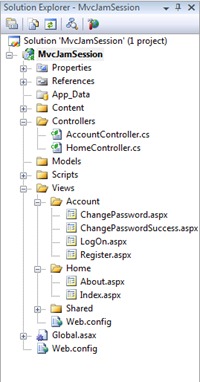 Development within ASP.NET MVC is based on convention over configuration. Certain naming conventions are built in the system to eliminate the amount of boiler-plate code that you need to recreate. That is not to say that you must follow these naming conventions—you may use whatever convention you like—but by straying from the standardized conventions, you will be creating a lot of extra work for yourself. With our new ASP.NET MVC 2 Project, a few of these conventions are immediately visible. Development within ASP.NET MVC is based on convention over configuration. Certain naming conventions are built in the system to eliminate the amount of boiler-plate code that you need to recreate. That is not to say that you must follow these naming conventions—you may use whatever convention you like—but by straying from the standardized conventions, you will be creating a lot of extra work for yourself. With our new ASP.NET MVC 2 Project, a few of these conventions are immediately visible.
- Controllers folder. This is where all Controller classes must go. Individual classes must be named <Name>Controller. The default project includes HomeController, which governs the Home and About actions, and AccountController, which governs the log in, log out, change password, and registration actions. If we were to make an application that manages Widgets, we would likely have a class named WidgetController.
- Views folder. This is where all of the Views must go. By default, views are paired one-to-one with controller actions, such as one view for new user registration and another view for changing your password. Views are also separated into folders matching the associated controller name—/Views/<ControllerName>/<ActionName>. Thus, HomeController's About action is associated with the /Views/Home/About view.
The Views folder also contains a Shared folder. This folder is where any common views, such as a Master Page, would reside. The Shared folder is also where the ViewEngine cascades to when it can't find an appropriate view in the /Views/<ControllerName> folder; if /Views/Home/About didn't exist, the ViewEngine would look for /Views/Shared/About. This can come in handy for common pages shared by all controllers, such as an error page. Session Exercise 1: Building an Application Using the project we just created, we're going to create an application that manage a list of employees, including their name, job title, date of hire, and date of termination. Though the default project is a great help on some applications, it can get in the way on others; we're not going to need any account services in our application, so we need to first trim the project down a little. - Delete the entire Account folder under /Views/.
- Delete AccountController.cs from the Controllers folder.
- Delete shared partial view /Views/Shared/LogOnUserControl.ascx.
- Delete reference to this partial view by removing the "LoginDisplay" DIV from /Views/Shared/Site.Master, lines 18-20.
- Removing LoginDisplay will cause a slight layout problem from the CSS. To fix it, modify the #menucontainer definition in /Content/Site.css on line 263.
#menucontainer
{
    padding-top:40px;
}
- Save all, compile, and Run. The site should be functioning normally, but without the Log In link in the top right of the home page.
Creating a Database
Like any dynamic web site, we need a storage mechanism. Create a database in SQL Server or SQL Server Express with an Employee table containing columns for name, job title, hired date, and termination date, as well as an identity column for finding records.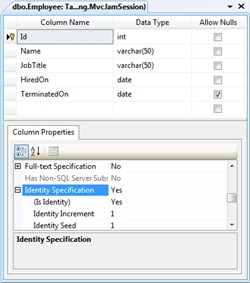
- For those with SQL Server Express, create a new database through right-clicking the App_Data folder, and adding a new item. The new item should be a SQL Server Database.
- For those with SQL Server, create a new database through SQL Server Management Studio (SSMS).
- Create a new table called Employee.
- Create the following columns within the new table:
- Id (primary key, identity, int, not null)
- Name (varchar(50), not null)
- JobTitle (varchar(50), not null)
- HiredOn (date, not null)
- TerminatedOn (date, null)
- Add a record or two to the table for good measure.
Creating a Model
The next thing we need to create is our Model. Not only is it the code representation for our business entity (An Employee class contains Name, JobTitle, HiredOn, and TerminatedOn properties), it is also responsible for how to get, save, or delete data from the database. We will be using Microsoft Entity Framework through Visual Studio to generate our model for us.
- To create our new Model, right-click the Model folder and select Add New Item. The new item should be an ADO.NET Entity Data Model, found within the Data category of the Add New Item dialog. Name it MvcJamSessionEntities.
- Generate the Model from a database, connecting to your MVC Jam Session database created in the previous section. On the step where you select your database connection, be sure to allow Visual Studio to add the connection string to your web.config by checking the appropriate checkbox.
- The Employee table is the only Data Object that needs to be generated.
- When the dialog completes, your Entity Data Model (a .edmx file) should be displayed in design view.
- Save all and compile.
Creating a Controller
Now that our model is in place, we need to create a controller. The controller is responsible for managing all interaction between the end-user and the application, including identifying what data to get, save, or delete. (Remember, though the Controller is responsible for what, the Model is responsible for how.)
- To create our new Controller, right-click the Controller folder and select Add Controller. Since the name matters in ASP.NET MVC's convention-over-configuration style, name it EmployeeController.cs (or .vb, if you happen to be working in Visual Basic .NET). Be sure to check the "Add action methods for Create, Update, Detail, and Delete scenarios" as we will be using them later.
- We now have a basic controller, but it doesn't do anything yet. First, we want to modify our Index action, as it is the default action in the controller. We will use this action to list all of the Employees that currently exist in our database. Your Index() action method should contain the following code:
var _entities = new MvcJamSession.Models.MvcJamSessionEntities();
return View(_entities.Employee.ToList());
- Save all and compile.
Creating a View
We have our Model and we have our Controller, so it is time for our View. The View is responsible for display only—it should contain virtually no logic. Our controller doesn't do anything yet, but we can at least get the base file structure and navigation in place. Since our Model governs how and our Controller governs what, think of the View as governing where, as it is responsible for deciding where each data element gets displayed on your page.
- Once you have saved and compiled your Controller, right-click on the Index action name and select Add View.
- The View should be named Index, just like your Controller action. Also, make your View strongly typed to the Employee model. Since a list of Employees is being passed to the View from the Controller, making the View strongly-typed prevents us from having to cast our View Model from object to Employee. Finally, since we are providing a list of Employees, the View Content should be a List.
- The Employee folder should be automatically created under the /Views/ folder, and the Index.aspx View inside of this new Employee folder.
- The last thing we need to do is provide some navigation to this view. Open up /Views/Shared/Site.Master and add an ActionLink within the Menu Container section to the Index action of the Employee controller. When you are done, the Menu Container should look like this:
<ul id="menu">
  <li><%= Html.ActionLink("Home", "Index", "Home")%></li>
  <li><%= Html.ActionLink("About", "About", "Home")%></li>
  <li><%= Html.ActionLink("Employees", "Index", "Employee")%></li>
</ul>
- Save all and run. When you navigate to your Employees link, you should get a list of all employees currently in the database with an Edit, Details, and Delete links.
New in ASP.NET MVC 2: Strongly Typed HTML Helpers
In the previous version of ASP.NET MVC, HTML helpers were simple generic classes. Generated views were full of Magic Strings for each property in your model, such as <%= Html.TextBox("Name") %>, opening the door for a fat-fingered property name. MVC 2 includes strongly-typed HTML helpers on strongly-typed views. For form-based views, use the new strongly-typed "For" methods, such as <%= Html.TextBoxFor(model => model.Name) %> or <%= Html.EditorFor(model => model.Name) %> to eliminate the risk of incorrectly entering a property name. For display fields, use Html.DisplayFor() to provide similar benefits for your read-only data, including the elimination of HTML encoding for each field.
Adding New Data
A list of employees is great, but we also need the ability to manipulate that data. First, let's start with the ability to create new data.
- Within Visual Studio, open /Controllers/EmployeeController and navigate to the POST Create action. POST is an HTTP verb associated with pushing data to the server in the HTTP header, commonly associated with form submits. GET is the HTTP verb for pure retrieval, commonly associated with a direct URL request, such as clicking a link. In this case, the POST action can be identified by the [HttpPost] decoration.
- The method arguments currently include only a FormCollection object that will contain all of the header values associated with the POST. However, MVC is smart; it can automatically transform this collection into a type-safe Model, based on the names of the header variables (the identities of the HTML form inputs match the names of the Model's properties). The one exception is the Id attribute, which is available in the Model but not populated until after the object is saved to the database. To get strong typing, and avoid having to manually cast or map form collection data to a new instance of our Model, change the method signature to the following:
public ActionResult Create([Bind(Exclude="Id")] Employee newEmployee)
- Now that we have a populated Model, we just need to save the Model to the database and redirect back to the List when we are done. Do this by replacing the contents of the action method with the following code:
try
{
  if (!ModelState.IsValid) return View();

  var _entities = new MvcJamSession.Models.MvcJamSessionEntities();
  _entities.AddToEmployee(employee);
  _entities.SaveChanges();
  return RedirectToAction("Index");
}
catch
{
  return View();
}
- Save and compile.
- Now we must create the View for adding data. As we did with Index, we can create the view by right-clicking the Action method and selecting Add View. The view content should be Create.
- The only modification for the Create view is the Id property. The generated code creates an input for this property, but it is not needed since the column value is auto-populated by the database when saving the entity. Remove this input and label from the form.
- Save and run. You should now be able to add new records to the database.
New in ASP.NET MVC2: Better Verb Attributes
In the first version of ASP.NET MVC, HTTP Verb conditions were placed on an Action via the AcceptVerbsAttribute, such as the Create action's [AcceptVerbs(HttpVerbs.Post)]. In ASP.NET MVC 2, these attributes have been simplified with the introduction of the HttpGetAttribute, HttpDeleteAttribute, HttpPostAttribute, and HttpPutAttribute.
Routing and Updates
The end user can view a list of Employees, and can create new employees, but when the end user clicks the Edit or Detail links, they get an error since these Views haven't been created yet and the Actions are not implemented. One by one, we will get the new views in place.
- Within Visual Studio, open /Controllers/EmployeeController and navigate to the Details action. You may notice that the method already accepts an integer as input, and shows example usage of the action in a commented URL above the method: /Employee/Details/5. This integer is the identity value of the Employee record, and is already populated in the links of our List view created in the previous section.
- Within Visual Studio, open Global.asax and navigate to the RegisterRoutes method. The default route for ASP.NET MVC is /{controller}/{action}/{id}/. By parsing out any URL into the application, MVC can determine which Controller to use, which Action to execute, and which arguments to pass to the Action. Later portions of the URL path are often optional, and when not specified, are replaced with the default values: Home, Index, and String.Empty. The URLs of "/", "/Home", "/Home/", "/Home/Index", and "/Home/Index/" are all equivalent URLs in the eyes of ASP.NET MVC.
Go back to the Employee controller. Now that we know what the integer argument is for, we need to retrieve the Employee matching the associated identity and pass it to a view for editing or display.
- Replace the contents of the GET version of the Edit action method with the following code to retrieve the Employee from the database that matches the identity specified in the route:
var _entities = new MvcJamSession.Models.MvcJamSessionEntities();
return View(_entities.Employee.Where(emp => emp.Id == id).First());
- Save and compile.
- Right-click the Action and add the View. The View should still be strongly typed, but this time the view content should be Edit.
- The Details and GET Delete actions are largely similar as the GET Edit action, except that the view is labels instead of text boxes. Repeat the above three steps for the Details action method with a Details view content and for the GET Delete action method with a Delete view content.
- As with the Create view, the Id property should be removed from the Edit view, as it is not an item that should be edited by the end user.
- Save and run. You should see the details of an Employee when clicking on the Edit and Details links.
- We can view Employee details within the Edit form, but when we make changes and submit, nothing happens. We need to modify the POST Edit action to save our changes back to the database. The default POST Edit action accepts an id and a FormCollection as input arguments, but similarly to the POST Create action, we can change this to use our strongly typed model to avoid having to cast or map data. However, unlike our Create action, we need to bind the id property so that the system knows which record to update. To make these modifications, replace the POST Edit signature with the following:
public ActionResult Edit(MvcJamSession.Models.Employee employee)
- Replace the contents of the POST Edit action method with the following code to save the changes to the database:
try
{
  if (!ModelState.IsValid) return View();

  var _entities = new MvcJamSession.Models.MvcJamSessionEntities();
  var _originalEmployee =
    _entities.Employee.Where(emp => emp.Id == employee.Id).First();
  _entities.ApplyPropertyChanges(_originalEmployee.EntityKey.EntitySetName,
                                 employee);
  _entities.SaveChanges();
  return RedirectToAction("Index");
}
catch
{
  return View();
}
- Replace the signature of the POST Delete action method with the following code to provide strong typing on our model:
public ActionResult Delete(MvcJamSession.Models.Employee employee)
- Finally, replace the contents of the POST Delete action method with the following code to delete a record:
var _entites = new MvcJamSession.Models.MvcJamSessionEntities();
var originalEmployee =
  _entites.Employee.Where(emp => emp.Id == deletedEmployee.Id).First();
_entites.DeleteObject(originalEmployee);
_entites.SaveChanges();
return RedirectToAction("Index");
- Save, compile, and run. You should now be able to modify existing Employee records.
We now have a fully-functional ASP.NET MVC application to manage our Employee records. Congratulations!
On Tuesday, February 23rd, I will be leading the jam session for Come Jam With Us, the software developer study group in Ann Arbor. The session will be on ASP.NET MVC, and aims to give attendees enough of an introduction to the product to empower developers to be able to start coding their own ASP.NET MVC 2 projects. Like all of the Come Jam With Us sessions for the winter/spring of 2010, it will be held at the offices of SRT Solutions in Ann Arbor at 5:30p. Prerequisites You will need few things for ASP.NET MVC 2 application development and to complete this exercise. Please complete the following prerequisites prior to the session, otherwise you likely will spend the hour downloading and installing rather than coding. Rescheduled Due to weather, the original February 9th meeting was cancelled. This session is rescheduled for Tuesday, February 23rd.
|